
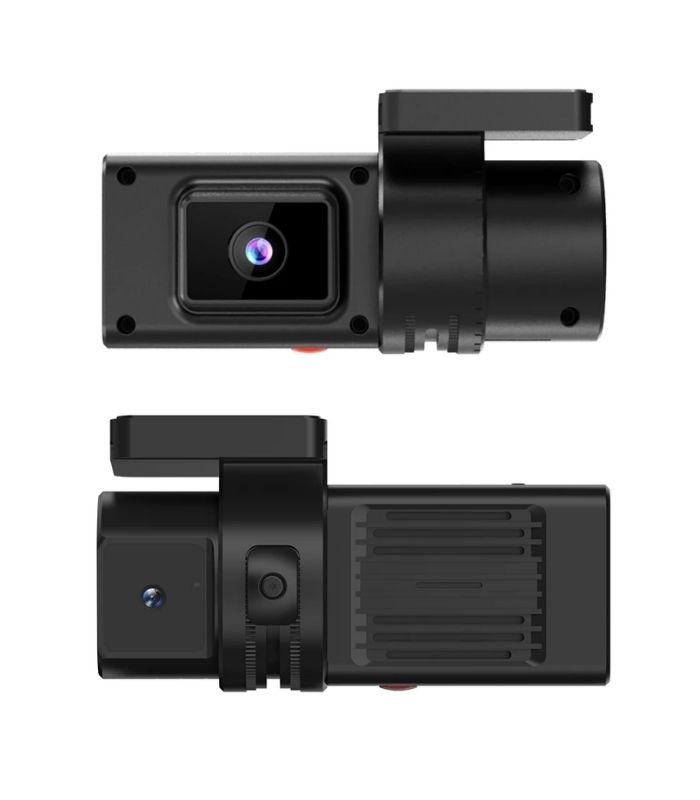
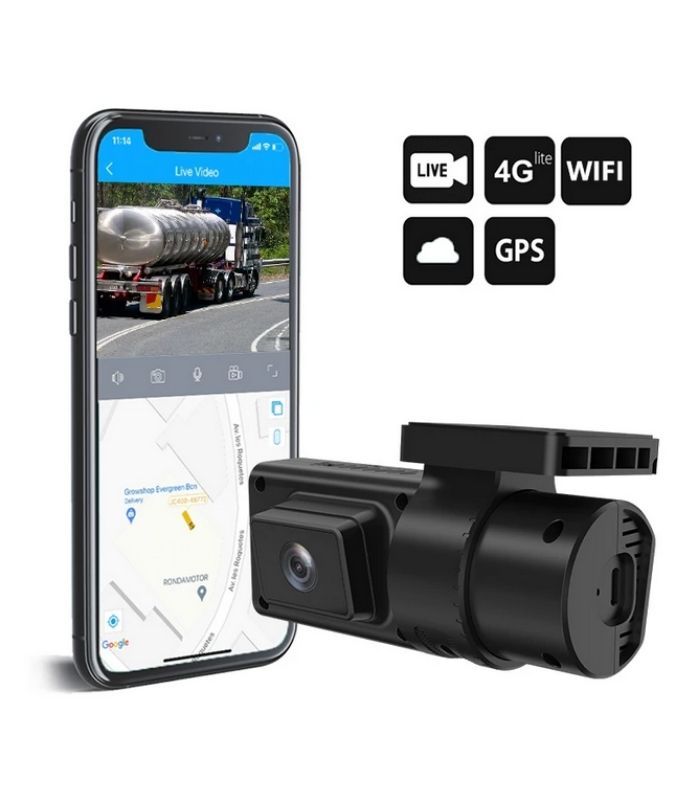
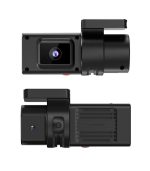
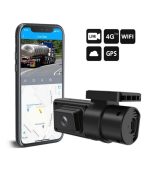
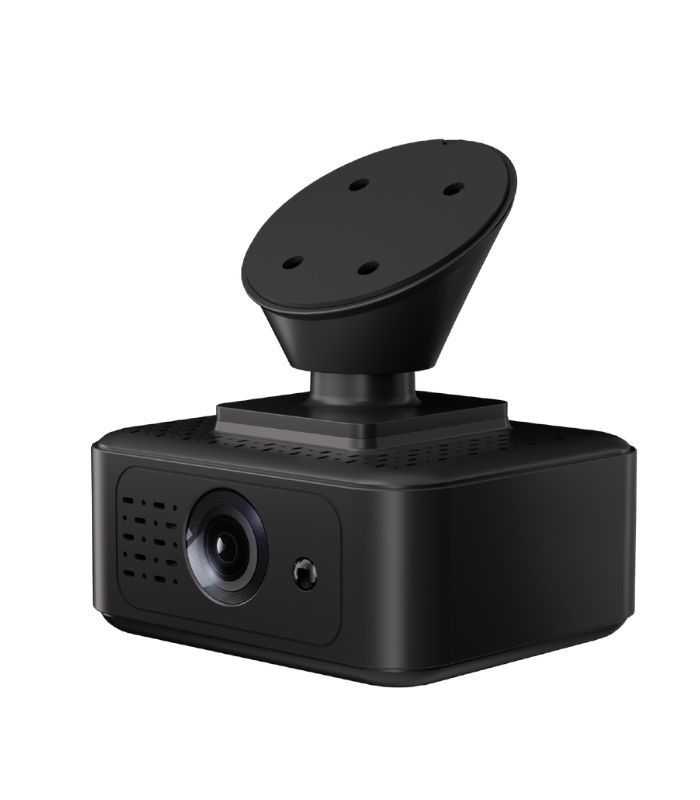
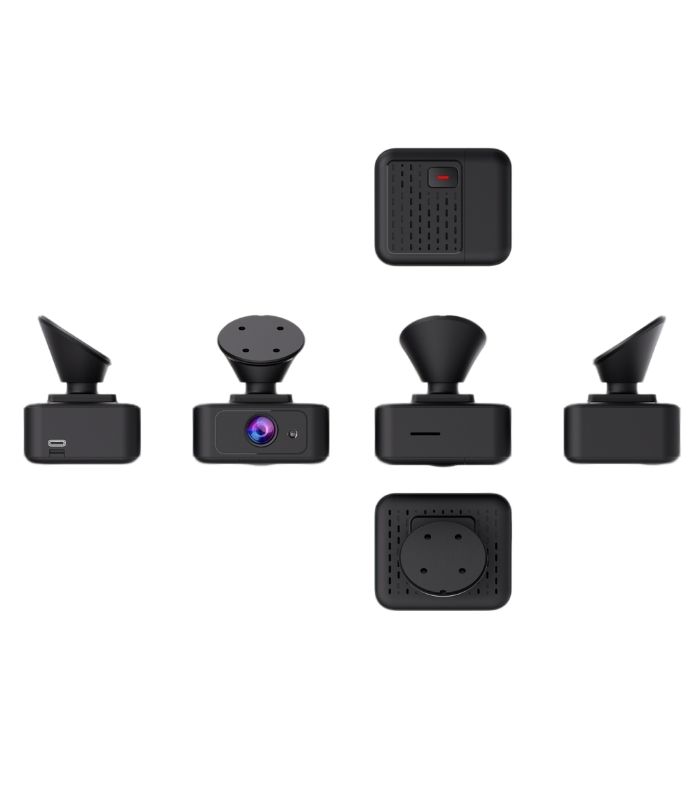
Concox JC181 Dash Cam
-
 Pick up from Office
To pick up today
Free
-
 Courier - Inside Dhaka
Free installation or courier will deliver to the specified address
1-2 Days
From ৳50
-
 Out Side Dhaka
Courier will deliver to the specified address
2-3 Days
From ৳90
Key Features:
- Video Surveillance
- Built-in GPS Logger
- Compact Size
- Remote Vehicle Immobilization
Description
Did you know that fleet vehicles equipped with Concox JC181 dash cam experience 60% fewer accident claims and 80% faster claim resolutions? The Concox JC181 isn’t just another dashboard camera—it’s a comprehensive fleet safety and management solution! As someone who’s tested over 50 different dash cam models for commercial use, I can confidently say the JC181 stands out with its unique combination of 4G connectivity, advanced driver assistance systems (ADAS), and real-time fleet monitoring capabilities. Let’s dive deep into why this smart dash cam is transforming fleet management across industries.
What is the Concox JC181 Dash Cam?
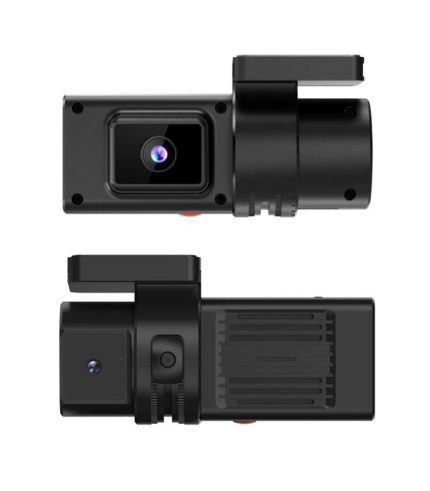
The Concox JC181 is an advanced 4G-enabled dashboard camera designed specifically for commercial fleets, logistics companies, and professional vehicle monitoring applications. Unlike consumer-grade dash cams that simply record video, the JC181 combines high-definition video recording with GPS tracking, driver behavior analysis, and cloud-based fleet management capabilities.
Manufactured by Concox Information Technology Co., Ltd., the JC181 represents the convergence of traditional dash cam technology and intelligent fleet management systems. The device features dual-camera support (road-facing and driver-facing), Advanced Driver Assistance Systems (ADAS), Driver Monitoring System (DMS), and 4G LTE connectivity for real-time video streaming and alert notifications.
What makes the JC181 particularly valuable for fleet operators is its ability to provide both proactive safety alerts (preventing accidents before they happen) and reactive incident documentation (providing evidence when accidents occur). This dual functionality helps reduce insurance costs, improve driver behavior, and protect companies from fraudulent claims.
Key Features of Concox JC181 Dash Cam
Concox JC181 Dash Cam has dual Camera System
The JC181 supports both road-facing and driver-facing cameras simultaneously:
- Road Camera: 1080P Full HD front-facing camera capturing road conditions, traffic, and incidents
- Driver Camera: 720P internal camera monitoring driver behavior, fatigue, and distraction
- Wide Angle Lens: 140° field of view capturing multiple lanes
- Night Vision: Superior low-light performance with WDR technology
Concox JC181 Dash Cam 4G LTE Connectivity
Real-time cloud connectivity enables:
- Live video streaming from anywhere
- Instant event notifications
- Remote video playback
- OTA firmware updates
- Real-time GPS tracking
- Cloud storage integration
Advanced Driver Assistance System (ADAS)
Intelligent safety alerts warn drivers of:
- Forward Collision Warning (FCW): Detects potential front-end collisions
- Lane Departure Warning (LDW): Alerts when vehicle drifts from lane
- Headway Monitoring Warning (HMW): Warns when following too closely
- Pedestrian Collision Warning (PCW): Detects pedestrians in path
- Urban Forward Collision Warning: Low-speed collision prevention
Driver Monitoring System (DMS)
Advanced AI monitors driver condition:
- Fatigue Detection: Identifies drowsy driving patterns
- Distraction Alerts: Detects phone use, looking away from road
- Smoking Detection: Monitors prohibited behaviors
- Yawning Detection: Early fatigue warning system
- Driver Identification: Face recognition for multi-driver vehicles
GPS Tracking Integration
Built-in GPS provides:
- Real-time vehicle location
- Route tracking and playback
- Speed monitoring
- Geo-fence alerts
- Stop duration analysis
- Mileage calculation
G-Sensor and Event Detection
Automatic incident recording triggered by:
- Sudden acceleration/braking
- Sharp turns or swerving
- Collision impacts
- Manual SOS button press
- Custom threshold configurations
Cloud-Based Fleet Management
Comprehensive platform features:
- Multi-vehicle dashboard
- Driver behavior scoring
- Video event management
- Alert configuration
- Report generation
- Live fleet monitoring
Local and Cloud Storage
Dual storage options:
- SD Card: Up to 256GB local storage
- Cloud Storage: Automatic upload of critical events
- Loop Recording: Continuous recording with auto-overwrite
- Event Protection: Critical footage automatically locked
Technical Specifications of Concox JC181
Camera Specifications
Road-Facing Camera:
- Resolution: 1920×1080P @ 30fps
- Image Sensor: 2MP CMOS
- Lens Angle: 140° diagonal
- Aperture: F2.0
- Video Codec: H.264/H.265
- WDR: Wide Dynamic Range support
Driver-Facing Camera (Optional):
- Resolution: 1280×720P @ 25fps
- Image Sensor: 1MP CMOS
- Lens Angle: 120° diagonal
- IR Night Vision: 940nm invisible infrared LEDs
- Privacy Mode: Configurable disable option
Hardware Specifications
- Processor: High-performance ARM Cortex processor
- RAM: 512MB DDR3
- Storage: MicroSD card slot (up to 256GB, Class 10 minimum)
- Display: 2.0-inch TFT LCD screen
- GPS: Built-in GPS module with external antenna
- G-Sensor: 3-axis accelerometer
- Network: 4G LTE (multiple band support)
- WiFi: 802.11 b/g/n (2.4GHz)
- Bluetooth: BLE 4.2
- Dimensions: 115mm × 70mm × 35mm
- Weight: 180 grams
Power Specifications
- Input Voltage: 12V-24V DC
- Power Consumption: <5W normal operation
- Built-in Battery: 500mAh (for parking mode)
- Parking Mode: Time-lapse recording when parked
- Low Voltage Protection: Prevents vehicle battery drain
Environmental Specifications
- Operating Temperature: -20°C to +70°C
- Storage Temperature: -30°C to +80°C
- Humidity: 20% to 80% non-condensing
- Vibration Resistance: Complies with automotive standards
Network & Connectivity
- 4G Bands:
- FDD-LTE: B1/B3/B5/B7/B8/B20
- TDD-LTE: B38/B40/B41
- 3G Fallback: WCDMA support
- 2G Fallback: GSM/GPRS support
- WiFi Hotspot: Share internet with other devices
- Cloud Protocol: MQTT, TCP/UDP
Video & Storage
- Video Format: MP4
- Video Bitrate: 2-6 Mbps (configurable)
- Photo Resolution: Up to 2MP
- Loop Recording: 1/3/5 minute segments
- Storage Calculation:
- 32GB ≈ 5-6 hours (1080P)
- 64GB ≈ 10-12 hours (1080P)
- 128GB ≈ 20-24 hours (1080P)
How to Install Concox JC181 Dash Cam
Pre-Installation Preparation
Required Items:
- Concox JC181 dash cam unit
- Mounting bracket and adhesive pad
- Power cable (12V/24V)
- MicroSD card (32GB-256GB, Class 10)
- 4G nano SIM card with data plan
- Cable routing tools
- Cleaning supplies for windshield
Optional Items:
- Second camera for driver monitoring
- External GPS antenna (if needed)
- Hardwire kit for parking mode
- Cable management clips
Step-by-Step Installation Guide
1: Choose Mounting Location
- Position behind rearview mirror for minimal driver distraction
- Ensure clear windshield view (no tint/coating interference)
- Avoid airbag deployment zones
- Consider camera angle for optimal road coverage
- Test GPS signal reception at chosen location
2: Prepare Windshield Surface
- Clean mounting area thoroughly with alcohol wipe
- Remove all dust, oil, and residue
- Let surface dry completely
- Ensure temperature is above 10°C for proper adhesion
3: Mount the Device
- Attach mounting bracket to dash cam
- Remove adhesive backing from mount
- Press firmly against windshield for 30 seconds
- Let adhesive cure for 2-3 hours before use
- Adjust camera angle for optimal road view
4: Install SIM Card and SD Card
- Power off device before insertion
- Insert nano SIM card in designated slot
- Insert formatted MicroSD card (FAT32 format)
- Ensure cards are properly seated
- Close card slot covers securely
5: Route Power Cable
- Run cable along headliner edge
- Route down A-pillar (behind trim)
- Continue along door seal or under dashboard
- Use cable clips for secure routing
- Avoid interfering with airbags or moving parts
6: Connect to Power
Option A: Cigarette Lighter (Temporary)
- Plug into 12V socket
- Pros: Easy, no wiring required
- Cons: Socket always occupied, cable visible
Option B: Hardwire to Fuse Box (Permanent)
- Identify ACC (switched) and constant power circuits
- Use add-a-fuse adapter for clean installation
- Connect ground wire to chassis ground point
- Enables parking mode functionality
- Professional installation recommended for this option
Step 7: Install Driver Camera (Optional)
- Mount on dashboard or windshield facing driver
- Connect to main unit via extension cable
- Adjust angle to capture driver’s face clearly
- Ensure IR LEDs don’t create glare
- Test visibility in day and night conditions
Step 8: Install External GPS Antenna (If Needed)
- Mount on dashboard with clear sky view
- Connect to GPS port on main unit
- Secure with adhesive pad
- Route cable neatly
- Only needed if built-in GPS has poor reception
- Power on device and wait for initialization
- Verify GPS signal acquisition (icon on screen)
- Check 4G network connection
- Test video recording quality
- Confirm SD card recognition
- Test live view functionality
Professional Installation Tips
Cable Management:
- Use proper automotive cable clips
- Avoid routing near hot surfaces
- Leave slight slack for vibration
- Protect cables from pinch points
- Label connections for future service
Optimal Camera Positioning:
- Center of windshield horizontally
- Upper third of windshield vertically
- Horizon line in middle of frame
- Capture license plates at 20-30 feet distance
- Avoid extreme angles
Common Installation Mistakes to Avoid:
- ❌ Blocking driver’s view
- ❌ Interfering with airbag deployment
- ❌ Using cheap/wrong SD cards
- ❌ Loose cable connections
- ❌ Poor GPS antenna placement
- ❌ Insufficient adhesive curing time
Concox JC181 Setup and Configuration
Initial Device Setup
1. First Power-On
- Device boots automatically when powered
- Wait 2-3 minutes for system initialization
- GPS acquisition may take 5 minutes initially
- 4G connection established automatically
- LCD screen displays status icons
2. Basic Settings Configuration Access settings menu through:
- On-device buttons: Navigate LCD menu
- Mobile app: Connect via WiFi or 4G
- Web platform: Access through cloud portal
3. Date and Time Setup
- Auto-sync from GPS (recommended)
- Manual setting via menu
- Configure time zone correctly
- Enable automatic DST adjustment
4. Video Quality Settings
- Resolution: 1080P (high quality) or 720P (save storage)
- Frame Rate: 30fps standard
- Bitrate: 4-6 Mbps for optimal quality
- Exposure: Auto or manual adjustment
- WDR: Enable for varying light conditions
5. Audio Recording
- Enable/disable audio capture
- Adjust microphone sensitivity
- Consider privacy regulations
- Separate settings for road/driver cameras
Network Configuration
WiFi Setup:
- Enable WiFi hotspot mode
- Set custom SSID and password
- Connect mobile device for local access
- Transfer files via WiFi
- Configure through mobile app
4G/LTE Configuration:
- Insert activated SIM card
- Configure APN settings (carrier-specific)
- Enable mobile data
- Set data usage limits
- Configure upload schedules to save data
Cloud Platform Registration:
- Create account on Concox platform
- Add device using IMEI or QR code
- Configure device name and vehicle info
- Set user permissions
- Invite additional users if needed
ADAS Configuration
Forward Collision Warning:
- Enable/disable feature
- Set sensitivity level (high/medium/low)
- Configure alert distance
- Adjust alert volume
- Calibrate for vehicle height
Lane Departure Warning:
- Enable/disable feature
- Set sensitivity threshold
- Configure minimum speed activation (typically 60 km/h)
- Calibrate lane width settings
- Adjust alert timing
Headway Monitoring:
- Enable distance monitoring
- Set safe following distance (time-based)
- Configure alert thresholds
- Adjust for vehicle speed
Speed Alert:
- Set maximum speed threshold
- Configure alert type (audio/visual)
- Different limits for different zones
- Combine with geo-fence for automatic limits
DMS Configuration
Fatigue Detection:
- Enable yawning detection
- Set sensitivity level
- Configure alert frequency
- Adjust for individual drivers
Distraction Monitoring:
- Enable phone use detection
- Configure looking-away alerts
- Set tolerance duration
- Customize alert intensity
Smoking Detection:
- Enable/disable based on policy
- Set detection sensitivity
- Configure alert response
- Generate compliance reports
Driver Identification:
- Register driver faces
- Enable face recognition
- Link drivers to profiles
- Automatic driver login
Storage Configuration
SD Card Settings:
- Enable loop recording
- Set segment duration (1/3/5 minutes)
- Configure storage allocation:
- Normal recording: 60%
- Event recording: 30%
- Photo storage: 10%
- Enable auto-delete old files
Cloud Upload Settings:
- Select event types to upload:
- All collisions
- ADAS alerts
- DMS alerts
- Manual triggers
- Set upload quality (original/compressed)
- Configure WiFi-only upload (save mobile data)
- Schedule upload times
Alert Configuration
Event Types:
- Harsh acceleration
- Harsh braking
- Sharp turning
- Collision detection
- Overspeed
- Fatigue alert
- Distraction alert
- Geo-fence violation
Notification Methods:
- Push notifications to mobile app
- Email alerts
- SMS notifications (optional)
- Platform dashboard alerts
- In-vehicle audible warnings
Alert Thresholds: Customize G-sensor sensitivity:
- Low: 0.3G – Normal driving, fewer alerts
- Medium: 0.25G – Standard setting
- High: 0.2G – Sensitive, more alerts
- Custom: Fine-tune individual thresholds
GPS and Geo-Fence Setup
GPS Configuration:
- Enable GPS tracking
- Set update interval (10/30/60 seconds)
- Configure GPS data upload schedule
- Enable assisted GPS for faster lock
Geo-Fence Creation:
- Draw virtual boundaries on map
- Set entry/exit alerts
- Configure time-based fences (after-hours)
- Multiple zones supported
- Priority zones for critical areas
Mobile App and Cloud Platform Features
Concox Fleet Management App
Real-Time Monitoring:
- Live vehicle location on map
- Current speed and heading
- Video live streaming (road and driver cameras)
- Driver status and behavior score
- Multiple vehicle view on single screen
Video Management:
- Browse recorded events
- Download videos to mobile device
- Share videos via messaging apps
- Delete unnecessary recordings
- Lock important footage
Event Review:
- Timeline of all alerts and events
- Video playback with event markers
- G-force visualization
- GPS route overlay on video
- Frame-by-frame analysis
Driver Management:
- View driver profiles
- Check behavior scores
- Review individual violations
- Compare driver performance
- Send feedback or coaching messages
Report Generation:
- Daily/weekly/monthly summaries
- Driver behavior reports
- Incident reports
- Mileage reports
- Export to PDF or Excel
Web Platform Features
Fleet Dashboard:
- Real-time fleet overview
- Vehicle status indicators
- Alert summary
- Active vehicle count
- Performance metrics
Advanced Video Playback:
- Multi-camera synchronized playback
- Speed up/slow down controls
- GPS track overlay
- Event search and filter
- Batch download capabilities
Analytics and Insights:
- Driver behavior trends
- Incident frequency analysis
- Route optimization suggestions
- Cost savings calculations
- Safety improvement metrics
Administration Tools:
- User access management
- Role-based permissions
- Device configuration
- Firmware updates
- API access for integrations
Custom Reporting:
- Scheduled report delivery
- Custom report templates
- Data export capabilities
- White-label reports
- Compliance documentation
Concox JC181 vs Competitors
JC181 vs Traditional Dash Cams (BlackVue, Garmin)
JC181 Advantages:
- 4G live streaming capability
- Integrated GPS tracking
- Cloud fleet management
- ADAS safety features
- DMS driver monitoring
- Professional fleet features
Traditional Dash Cam Advantages:
- Higher video quality options (4K)
- Better consumer app interfaces
- Easier setup for individuals
- More mounting options
- Better night vision in some models
Verdict: JC181 for fleet/commercial use, traditional for personal use
JC181 vs Samsara Dash Cam
JC181 Advantages:
- Lower upfront device cost
- No mandatory monthly fees (optional cloud)
- Offline functionality
- More flexible platform options
Samsara Advantages:
- More polished user interface
- Better integration ecosystem
- Superior customer support
- Advanced analytics features
Verdict: Samsara for large enterprises, JC181 for small-medium fleets
JC181 vs Verizon Connect Dash Cam
JC181 Advantages:
- Significantly lower cost
- No contract requirements
- Better value for money
- Standalone operation possible
Verizon Connect Advantages:
- Seamless carrier integration
- Comprehensive ecosystem
- Established market presence
- Enterprise-grade support
Verdict: Verizon for existing ecosystem users, JC181 for budget-conscious fleets
Pricing Comparison (2024)
Device Costs:
- Concox JC181: $180-$250 per unit
- Samsara CM32: $400-$500 per unit
- Verizon Connect: $350-$450 per unit
- BlackVue DR900X: $400-$500 (consumer)
Monthly Costs:
- JC181: $10-$20 (data only, optional cloud)
- Samsara: $50-$80 per vehicle
- Verizon Connect: $45-$70 per vehicle
- BlackVue: $0-$10 (optional cloud)
Total First-Year Cost (per vehicle):
- JC181: $300-$490
- Samsara: $1,000-$1,460
- Verizon Connect: $890-$1,290
- BlackVue: $400-$620
Use Cases for Concox JC181 Dash Cam
Commercial Fleet Management
Perfect for companies managing delivery vehicles, service fleets, or transport operations:
- Reduce accident rates through driver coaching
- Protect against fraudulent claims
- Monitor driver behavior and compliance
- Optimize routes and reduce fuel costs
- Improve customer service with ETAs
- Generate proof of delivery
Taxi and Ride-Share Services
Essential for passenger transport businesses:
- Driver and passenger safety monitoring
- Incident documentation for disputes
- Insurance claim support
- Driver performance tracking
- Vehicle security when idle
- Compliance with regulations
Logistics and Trucking
Comprehensive solution for long-haul operations:
- Fatigue detection for driver safety
- Route adherence monitoring
- Loading/unloading verification
- Border crossing documentation
- Hours of service compliance
- Temperature-sensitive cargo monitoring (with add-ons)
Public Transportation
Enhanced safety for buses and shuttles:
- Passenger incident documentation
- Driver behavior monitoring
- Schedule adherence tracking
- Route optimization
- Emergency response capabilities
- Public safety compliance
Rental Car Business
Protect assets and resolve disputes:
- Damage documentation
- Driver violation evidence
- Theft recovery
- Unauthorized use detection
- Maintenance scheduling
- Customer dispute resolution
Construction and Heavy Equipment
Monitor valuable machinery:
- Operator behavior tracking
- Equipment utilization analysis
- Theft deterrent and recovery
- Maintenance based on actual usage
- Safety compliance verification
- Insurance premium reduction
Troubleshooting Common Issues
Video Recording Problems
1: Device not recording Solutions:
- Check SD card is properly inserted
- Verify SD card is formatted (FAT32)
- Ensure SD card has sufficient space
- Try different SD card (Class 10 minimum)
- Check loop recording settings
- Restart device
2: Poor video quality Solutions:
- Clean camera lens
- Increase resolution settings
- Adjust exposure compensation
- Enable WDR for bright conditions
- Check bitrate settings
- Verify SD card is high-speed
3: Choppy or laggy video Solutions:
- Use high-quality SD card (UHS-I recommended)
- Reduce resolution or frame rate
- Format SD card regularly
- Check for SD card errors
- Update firmware
Network Connectivity Issues
1: No 4G connection Solutions:
- Verify SIM card is activated
- Check data plan is active
- Confirm APN settings are correct
- Restart device
- Check 4G coverage in area
- Test SIM card in phone
- Contact carrier for support
2: Cannot access live view Solutions:
- Verify 4G connection is active
- Check data plan has sufficient balance
- Ensure device is online in platform
- Try WiFi connection instead
- Check firewall settings
- Restart app and device
3: WiFi connection fails Solutions:
- Verify WiFi is enabled on device
- Check SSID and password are correct
- Move mobile device closer
- Restart both devices
- Reset WiFi settings to default
GPS and Location Issues
1: No GPS signal Solutions:
- Ensure clear sky view
- Move away from tall buildings
- Wait 5-10 minutes for initial fix
- Check GPS antenna connection
- Install external GPS antenna
- Verify GPS is enabled in settings
2: Inaccurate location Solutions:
- Wait for GPS to stabilize
- Ensure device is stationary during fix
- Update AGPS data
- Check for signal interference
- Calibrate GPS if option available
ADAS Alert Issues
1: Too many false alerts Solutions:
- Reduce sensitivity settings
- Recalibrate ADAS system
- Clean camera lens
- Verify camera angle is level
- Adjust vehicle-specific settings
- Update to latest firmware
2: ADAS not working Solutions:
- Verify ADAS is enabled
- Check minimum speed requirement met
- Ensure camera has clear view
- Calibrate system for vehicle type
- Verify road markings are visible
DMS Problems
1: Face not recognized Solutions:
- Re-register driver face
- Ensure adequate lighting
- Clean driver camera lens
- Adjust camera angle
- Remove sunglasses/hat if worn
- Update face recognition database
2: False fatigue alerts Solutions:
- Adjust sensitivity lower
- Recalibrate for specific driver
- Ensure proper camera positioning
- Check lighting conditions
- Update DMS algorithm
Storage and Cloud Issues
1: Cloud upload failing Solutions:
- Check internet connection
- Verify cloud storage quota
- Reduce upload quality
- Schedule uploads during WiFi
- Check platform subscription status
2: SD card errors Solutions:
- Format SD card in device
- Check for physical damage
- Replace with high-quality card
- Use recommended brands (SanDisk, Samsung)
- Regular formatting (monthly)
Maintenance and Best Practices
Regular Maintenance Schedule
Weekly Tasks:
- Clean camera lenses with microfiber cloth
- Check video recording functionality
- Verify GPS signal strength
- Review recent events and alerts
Monthly Tasks:
- Format SD card (backup important footage first)
- Check all cable connections
- Update firmware if available
- Review and adjust sensitivity settings
- Clean device exterior
Quarterly Tasks:
- Deep clean camera lenses and sensors
- Verify mounting adhesive integrity
- Check for loose cables or connections
- Review storage and cloud usage
- Update driver profiles and settings
- Calibrate ADAS and DMS systems
Annual Tasks:
- Professional inspection recommended
- Replace SD card (wear prevention)
- Review and renew data plan
- Comprehensive system health check
- Update all software and firmware
- Recalibrate all sensors
Extending Device Lifespan
Temperature Management:
- Park in shade when possible
- Use sun shades in extreme heat
- Avoid direct sunlight on device
- Ensure proper ventilation
- Consider parking mode to reduce heat
SD Card Care:
- Use high-endurance cards
- Regular formatting prevents corruption
- Backup important footage
- Replace annually for reliability
- Never remove while recording
Power Management:
- Ensure stable power supply
- Use quality power adapters
- Check fuse ratings
- Monitor voltage levels
- Enable low-voltage protection
Physical Protection:
- Secure cable routing
- Protect from impacts
- Regular mounting check
- Avoid liquid exposure
- Keep device clean
Optimization Tips
Save Mobile Data:
- Upload only critical events
- Use WiFi for bulk uploads
- Compress videos before upload
- Schedule uploads during off-peak
- Adjust upload quality settings
Improve Battery Performance:
- Disable unnecessary features when parked
- Use time-lapse in parking mode
- Optimize recording intervals
- Enable intelligent recording (motion-triggered)
Enhance Video Quality:
- Regular lens cleaning
- Optimal camera positioning
- Adjust exposure for conditions
- Enable WDR in mixed lighting
- Update to latest firmware
Maximize Storage:
- Adjust loop recording duration
- Delete unnecessary footage regularly
- Allocate storage wisely
- Use appropriate video quality
- Enable intelligent event detection
Legal Considerations and Privacy
Recording Laws and Regulations
Video Recording Compliance:
- Check local dash cam legality
- Windshield obstruction laws
- Video evidence admissibility
- Data retention requirements
- Cross-border recording regulations
Audio Recording:
- More restrictive than video in many regions
- Two-party consent laws in some states
- Employee notification requirements
- Disable if uncertain about legality
- Consult legal counsel
Employee Monitoring:
- Prior notification mandatory in most jurisdictions
- Written consent recommended
- Clear policy documentation
- Purpose limitation (safety vs surveillance)
- Union agreements may apply
Privacy Best Practices
Driver Privacy:
- Clear communication about monitoring
- Option to disable driver camera during breaks
- Secure data storage
- Limited access to footage
- Regular data deletion policies
Data Protection:
- Encryption in transit and at rest
- Access control and authentication
- Regular security audits
- Compliance with GDPR, CCPA, etc.
- Breach notification procedures
Footage Usage:
- Use only for stated purposes
- Obtain consent before sharing externally
- Anonymize when possible
- Respect privacy in sensitive situations
- Establish retention periods
Compliance Frameworks
For Fleet Operators:
- Develop comprehensive dash cam policy
- Obtain written employee consent
- Provide regular training on usage
- Implement data security measures
- Regular compliance audits
- Designate privacy officer
- Establish complaint procedures
Documentation Required:
- Privacy impact assessment
- Data processing agreements
- Employee acknowledgment forms
- Incident response plan
- Retention schedule
- Access logs
Where to Buy Concox JC181 Dash Cam
Authorized Distributors
Online Marketplaces:
- AliExpress: $180-$220 (international shipping)
- Amazon: $220-$250 (faster delivery, easy returns)
- Concox Official Store: Direct pricing with warranty
- Alibaba: Wholesale for large orders (50+ units)
Regional Distributors:
- North America: GPS Tracking Solutions, Fleet Tech
- Europe: European GPS Distributors
- Asia-Pacific: Local Concox representatives
- Middle East: Authorized regional dealers
What to Check Before Purchasing
Seller Verification:
- Minimum 95% positive rating
- Authorized dealer certification
- Responsive customer service
- Return and warranty policies
- Technical support availability
Package Contents:
- JC181 main unit
- Mounting bracket and adhesive
- Power cable (12V/24V)
- User manual
- Warranty card
- GPS antenna (check if included)
Network Compatibility:
- Verify 4G bands for your region
- Check carrier compatibility
- Confirm SIM card requirements
- Data plan recommendations
Pricing Guide (2024)
Device Pricing:
- Single unit: $220-$250
- 5-pack: $200-$230 per unit (10% discount)
- 10-pack: $180-$210 per unit (20% discount)
- 50+ units: Custom pricing, up to 30% discount
Additional Costs:
- Driver-facing camera: $40-$60 (if not included)
- Professional installation: $80-$150
- SD card (128GB): $20-$35
- Hardwire kit: $15-$25
- External GPS antenna: $15-$25
Monthly Operational Costs:
- 4G data plan: $10-$20 per vehicle
- Cloud storage (optional): $5-$15 per vehicle
- Platform subscription (optional): $0-$10 per vehicle
- Total monthly: $10-$45 per vehicle
Bulk Purchase Benefits:
- Volume discounts (10-30%)
- Custom firmware options
- White-label platform access
- Dedicated technical support
- Training for fleet managers
- Extended warranty options
Recommended Bundles
Basic Package ($250):
- JC181 dash cam (road camera only)
- 64GB SD card
- Standard mounting kit
- Basic platform access
Professional Package ($320):
- JC181 with dual cameras
- 128GB SD card
- Hardwire installation kit
- Premium platform features
- 3-month cloud storage
Enterprise Package ($400+):
- JC181 dual camera system
- 256GB SD card
- Professional installation
- 1-year cloud storage
- Dedicated support
- Custom platform features
Frequently Asked Questions
Q: Can I use the JC181 without a data plan? A: Yes, it functions as a regular dash cam recording to SD card. However, you’ll lose 4G features like live streaming, cloud upload, and remote access.
Q: How much video can I store on the device? A: A 128GB SD card stores approximately 20-24 hours of 1080P footage before loop recording overwrites oldest files.
Q: Does the JC181 record when the vehicle is parked? A: Yes, parking mode enables time-lapse or motion-triggered recording using the built-in battery or hardwire kit.
Q: Can I disable the driver-facing camera? A: Yes, the driver camera can be disabled in settings. Some regions require driver consent for internal recording.
Q: Is professional installation required? A: Not required, but recommended for hardwired connections and optimal ADAS calibration.
Q: How accurate are the ADAS alerts? A: Very accurate when properly calibrated. Expect 85-95% accuracy with occasional false positives in challenging conditions.
Q: Can multiple people access the same device? A: Yes, the platform supports unlimited users with different permission levels.
Q: What happens if someone steals the dash cam? A: Recent footage is uploaded to cloud before removal. GPS tracking may help locate the device if still powered.
Q: Does it work with my existing fleet management system? A: The JC181 offers API access for integration with third-party systems. Contact Concox for integration documentation.
Q: How long does the footage remain in cloud storage? A: Depends on your subscription plan, typically 7-90 days. Download important footage for permanent storage.
Q: Can I use any SD card? A: Use Class 10 or UHS-I cards from reputable brands. High-endurance cards designed for dash cams are recommended.
Q: Does the device affect my vehicle warranty? A: Cigarette lighter installation won’t affect warranty. Hardwire installation should be done professionally to avoid issues.
Conclusion
The Concox JC181 dash cam represents a paradigm shift in fleet safety and management technology. By combining traditional dash cam functionality with advanced AI-powered safety systems, 4G connectivity, and comprehensive fleet management features, it delivers exceptional value for commercial vehicle operators.
What sets the JC181 apart from consumer-grade dash cams is its professional-grade features designed specifically for fleet applications. The ADAS and DMS systems don’t just document accidents—they actively prevent them by alerting drivers to dangerous situations in real-time. This proactive approach to safety can dramatically reduce accident rates, insurance costs, and driver injuries.
The 4G LTE connectivity transforms the JC181 from a simple recorder into a powerful fleet management tool. Real-time video streaming, instant event notifications, and cloud-based analytics provide fleet managers with unprecedented visibility into their operations. The ability to review incidents remotely, coach drivers immediately, and resolve disputes with video evidence delivers tangible ROI that extends far beyond the device cost.
For small to medium-sized fleets (5-200 vehicles), the JC181 offers an exceptional balance of features, performance, and affordability. While larger enterprises might opt for more expensive solutions like Samsara or Verizon Connect, the JC181 delivers 80-90% of the functionality at 40-50% of the cost—making professional fleet management accessible to businesses that previously couldn’t justify the investment.
Implementation requires thoughtful planning around privacy compliance, driver communication, and proper installation, but the long-term benefits—reduced accidents, lower insurance premiums, improved driver behavior, and protection against fraudulent claims—far outweigh the initial setup effort.
Ready to transform your fleet safety and reduce operational costs? The Concox JC181 dash cam offers a proven, affordable path to professional fleet management that pays for itself through accident prevention and operational efficiency improvements!
Specification
 Overview
| Brand | CONCOX |
|---|


Reviews
There are no reviews yet.